

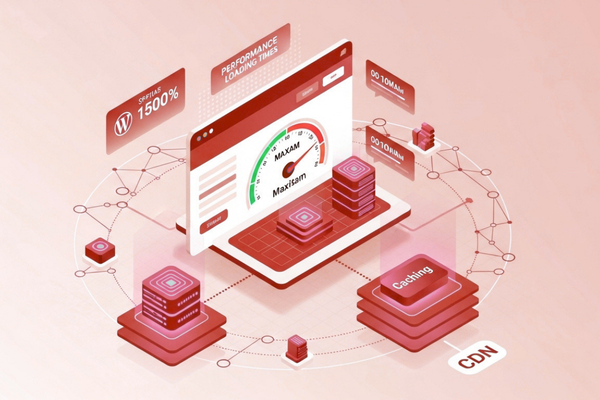
WordPress performance optimization is not just a “tech task.” It is a revenue task. A faster site helps you rank higher, convert more visitors, and lower ad costs. It also reduces support tickets like “the site is slow” and improves trust during checkout and form fills. In short, speed protects your brand.
In this guide, you’ll learn how to optimize WordPress performance like a pro: measure what matters, fix the highest-impact issues first, and build a system that keeps your site fast over time. We will cover quick wins (hosting, images, plugins), deeper fixes (caching, database cleanup), and user-first metrics like WordPress Core Web Vitals. You will also get practical checklists, tables, and simple steps you can hand to a developer or follow with your team.
If you use WordPress for lead gen, ecommerce, or content marketing, this is your playbook.
1) What wordpress performance optimization really means
Definition
It is the process of making a WordPress site load and respond faster by improving hosting, caching, code, images, and page setup so users get a smooth experience and Google can rank the site better.
A “fast site” is not only about the homepage loading quickly. Pros focus on:
- How fast do pages start to show content
- How fast users can click and scroll
- How stable the layout feels while loading
- How consistent is the speed across devices and locations
If you want a business-ready platform, it helps to understand why many brands choose WordPress in the first place. This short read on why businesses use WordPress to build powerful websites frames WordPress as a growth tool, not just a CMS.
2) How to Measure WordPress Performance
Before you change anything, get a baseline. This makes wordpress speed optimization faster because you stop chasing random fixes.
What to measure (and where)
Use these tools:
- Google PageSpeed Insights
- Google Core Web Vitals guidance
- Browser DevTools (Network + Performance tabs)
- Your analytics (bounce rate, conversion rate, top landing pages)
Track the pages that matter most
Do not test only the homepage. Focus on:
- Top landing pages from ads and SEO
- Product/category pages (if ecommerce)
- High-traffic blog posts
- Contact/quote pages
This is the foundation for wordpress page speed optimization that actually moves business metrics.
3) WordPress Speed Optimization Priority Checklist
A common mistake is trying to “optimize everything.” Pros follow a simple order that tends to produce the biggest speed gains.
Priority checklist
- Fix server and hosting limits first
- Add caching and compression
- Optimize images and media delivery
- Reduce heavy plugins and scripts
- Clean up the theme and page builder output
- Tune the database last (helpful, but rarely the biggest win)
These steps help improve wordpress performance without wasting time.
4) Best Hosting Setup for WordPress Speed
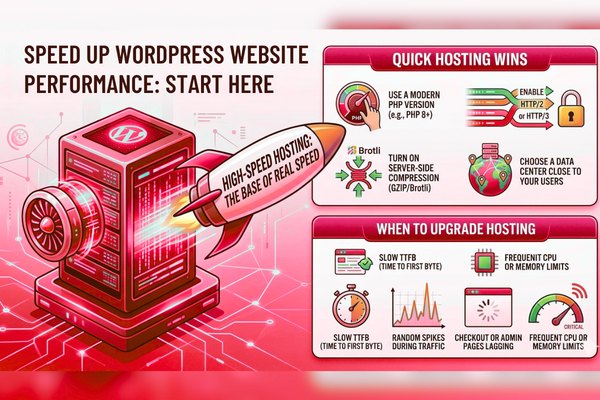
Quick hosting wins
- Use a modern PHP version (your host can switch it)
- Enable HTTP/2 or HTTP/3
- Turn on server-side compression (GZIP/Brotli)
- Choose a data center close to your users
- Avoid overcrowded shared hosting for revenue sites
When to upgrade hosting
Upgrade if you see:
- Slow TTFB (time to first byte)
- Random spikes during traffic
- Checkout or admin pages lagging
- Frequent CPU or memory limits
If you are rebuilding or scaling, it may be worth working with a team that does performance-focused builds from day one. This WordPress web development service approach is usually cheaper than patching speed issues for months.
5) Optimize WordPress Performance with Smart Caching
Caching is one of the biggest levers for speed. Done well, it delivers instant wordpress loading speed improvement for repeat and first-time visits.
What “good caching” includes
This is the heart of wordpress caching optimization:
- Page caching: serves a saved HTML version fast
- Browser caching: stores assets locally for returning users
- Object caching: speeds up database-driven pages
- CDN caching: serves files from locations near users
Practical caching setup (simple version)
- Install one solid caching plugin (avoid stacking 3 plugins)
- Turn on:
- Page cache
- CSS/JS minify (test carefully)
- Lazy-load for images
- Preload (if available)
- Add a CDN if you serve users across regions
Tip: After each change, test key pages. Some sites break when scripts are combined. Speed is useless if forms and checkout fail.
6) How to Reduce Plugin Load in WordPress
Many slow sites are slow because of plugins, especially ones that add scripts on every page. If your goal is to fix the slow wordpress site, this section is often the turning point.
Plugin cleanup rules
- Remove plugins you do not use (deactivate and delete)
- Replace “multi-purpose” plugins with lighter options
- Avoid plugins that run constant background jobs
- Check plugins that add:
- Popups
- Social feeds
- Sliders
- Tracking stacks
How to spot the worst plugin fast
Look for:
- Long database queries
- High PHP execution time
- Many frontend scripts are loaded sitewide
This kind of cleanup is underrated WordPress performance tips work because it reduces load without changing your design.
7) Theme and page builder cleanup (speed without redesign)
Your theme controls a lot of performance. To optimize WordPress speed, keep the front end lean.
Pro-level theme choices
- Use a lightweight theme built for performance
- Avoid themes that ship every feature for every site
- Keep animations and sliders minimal
Reduce page builder weight
Page builders can be fine, but avoid:
- Nested sections inside sections inside sections
- Huge numbers of widgets per page
- Global effects that load scripts everywhere
If you want an example of a real build where UX and speed both matter, see how a production site can be delivered with measurable outcomes. This project story on Bundlbox shows the kind of structured delivery that helps prevent performance debt.
8) Image, video, and font optimization (big gains, low risk)
Most WordPress pages are heavy because of media. This is where wordpress speed optimization becomes an easy win.
Image checklist
- Convert JPG/PNG to WebP (or AVIF if supported)
- Resize images to the maximum display size (don’t upload 5000px files)
- Use lazy loading for below-the-fold images
- Compress images before uploading
Video checklist
- Avoid auto-playing background videos
- Use a thumbnail + click-to-play
- Host large videos on a platform designed for streaming
Font checklist
- Use 1–2 font families max
- Load only needed weights (not 100–900)
- Prefer system fonts if the brand allows
These steps often deliver immediate wordpress page speed optimization results without touching core code.
9) WordPress core web vitals: the metrics that impact SEO
Google’s user experience signals matter. If you care about rankings and conversion, you need wordpress core web vitals in good shape.
Definition (Featured Snippet)
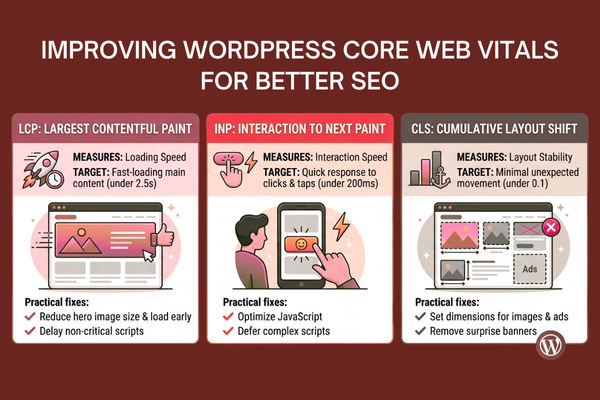
WordPress core web vitals are Google’s key experience metrics that measure loading speed, interaction speed, and layout stability on real user devices.
What to improve (simple targets)
- LCP (Largest Contentful Paint): make the main content load fast
- INP (Interaction to Next Paint): make clicks respond quickly
- CLS (Cumulative Layout Shift): stop layout jumps
Practical fixes that usually work
- Reduce the hero image size and load it early
- Delay non-critical scripts (chat widgets, some trackers)
- Set image and ad element dimensions
- Remove “surprise” banners that push content down
This is how you improve wordpress performance in a way that Google and users can both feel.
10) A pro workflow: keep speed from slipping again
True WordPress performance is not about one-time fixes. It is about keeping your site fast as you add new content, install plugins, and launch marketing campaigns.
Build a simple speed process
- Set a monthly performance check (top pages + top devices)
- Add a “no new plugin without review” rule
- Test speed before and after major updates
- Keep a staging site to test changes safely
Use performance budgets
Define limits, such as:
- Max page size (MB)
- Max requests
- Max scripts per page
This keeps your team aligned and helps speed up wordpress website experiences consistently.
11) Feature → Benefit table (what to do and why it pays)
Optimizing WordPress performance is not about one-time fixes. It is about keeping your site fast as you add new content, install new plugins, and launch new campaigns.
| Feature (Optimization) | Benefit (Business Result) |
| Page + browser caching | Faster repeat visits and lower server load |
| Image compression + WebP | Lower bounce rate on mobile |
| Script reduction | Better conversions from faster interactions |
| CDN for global users | Consistent speed across locations |
| Core Web Vitals tuning | Better SEO signals and smoother UX |
| Plugin cleanup | Fewer errors, faster pages, lower maintenance |
12) Business value: speed pays back (and where AI fits)
Fast websites are easier to market and scale. Done right, optimizing WordPress performance supports business growth and revenue, not just technical maintenance.
Business outcomes you can expect
- Higher conversion rates on landing pages
- Better SEO visibility from improved UX signals
- Lower paid media waste (fewer bounces)
- Better checkout completion (for ecommerce)
- Fewer customer complaints about slowness
Benefits of AI automation include:
- reduced operational costs
- faster workflows
- improved accuracy
AI can also support performance work by automating audits, summarizing logs, spotting heavy assets, and generating test cases. Even simple AI-assisted QA can help teams catch speed regressions before they hit production.
AI cost snapshot (planning table)
| AI Development Type | Estimated Cost |
| AI Chatbot | $10k – $50k |
| AI SaaS | $50k – $200k |
| Enterprise AI | $100k+ |
Start Your AI Development Project
If your team wants a faster WordPress site and smarter automation around testing, support, or content workflows, we can help you plan it clearly and build it in phases. Explore our AI services for product teams and get a clear scope, timeline, and budget using this project estimate process. You will leave with a plan you can execute without guesswork.
Conclusion
WordPress performance optimization is one of the highest-return upgrades you can make to a business website. When your pages load fast and respond quickly, users stay longer, forms get completed more often, and checkout friction drops. At the same time, search engines can crawl your site more efficiently, and your pages are more likely to compete for strong rankings, especially on mobile, where patience is low and speed matters most.
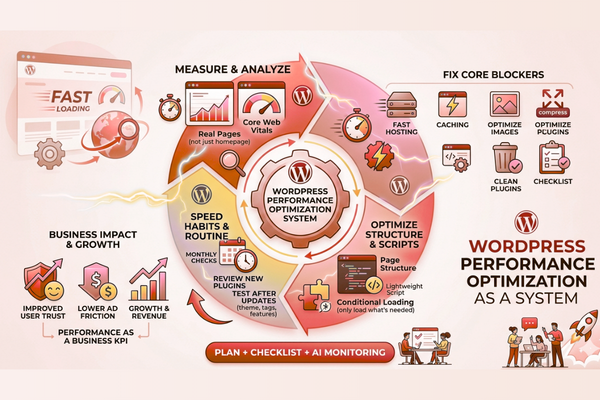
The most professional approach is simple and repeatable. Start by measuring real pages, not just your homepage. Then fix the biggest blockers first: slow hosting, missing caching, oversized images, and heavy plugins. After that, focus on page structure and scripts so each page loads only what it truly needs. This is how optimizing WordPress performance becomes an ongoing system rather than a one-time cleanup.
Make speed part of your routine. Set a monthly check for your top landing pages. Review new plugins before installing them. Test performance after theme updates, marketing tag changes, and new feature launches. Over time, these small habits prevent “speed creep,” where the site slowly gets heavier with each new request from marketing, content, or sales.
Finally, treat performance as a business KPI, not only a technical score. Faster sites protect ad spend, improve user trust, and support growth. When you combine smart caching, clean media, and strong wordpress core web vitals results, you create a smoother experience that customers notice and reward with action.
If your team wants help building a faster WordPress site or you want to automate audits, testing, and monitoring with AI, now is the right time to invest. A clear plan, a focused checklist, and steady improvement will keep your site fast today and ready for tomorrow.
FAQs
1) What is the fastest way to see speed improvements on WordPress?
Start with caching, image compression (WebP), and plugin cleanup. These often deliver visible wins without a redesign and support solid wordpress speed optimization.
2) How do I know what is making my site slow?
Check Google PageSpeed Insights and your browser’s Network tab. Look for slow server response, large images, and heavy scripts. This is the quickest path to fix the slow wordpress site issues.
3) Does a CDN always help?
A CDN helps most when you have users in different regions or many images and assets. It is a common part of wordpress page speed optimization for growing sites.
4) Can I optimize speed without changing my theme?
Yes. You can optimize WordPress speed with caching, media optimization, script control, and plugin reduction. Theme changes help, but they are not always required.
5) Are Core Web Vitals really important for business sites?
Yes. WordPress Core Web Vitals improvements usually mean a smoother user experience. That can lift SEO performance and conversions, especially on mobile.