
Your website is often the first place customers meet your brand. If it goes down, loads slowly, or shows spam, trust drops fast. Strong WordPress Security protects revenue, leads, and brand image. It also helps you avoid emergency cleanup costs and long downtime.
As a mobile app development company, we see one pattern again and again. Businesses invest in apps, ads, and content, but forget the site that supports it all. A hacked site can break app links, damage SEO, and interrupt customer journeys.
This guide keeps things simple. You will get clear steps you can use today. You will also see checklists, tables, and tools that help you stay consistent. We will cover updates, logins, hosting, backups, malware scanning, and the best plugin options. You will finish with a repeatable plan for WordPress website protection that supports real business growth.
Website Security and Business Risk: Why It Matters

Security is not just a tech issue. It is a business risk issue.
If your site is attacked, you can face:
- Lost sales from downtime
- Fewer leads from broken forms
- Higher ad spend (because trust and SEO drop)
- Brand damage from spam pages or redirects
- Extra support time for your team
A secure site is also easier to scale. When you add new landing pages, new features, or new integrations, you want a stable base.
If you are rebuilding or launching a new site, it helps to plan protection from day one. Our team often includes security planning inside larger builds, such as our WordPress website development services, so performance and protection grow together.
Quick view: threats, impact, and the simplest fix
| Threat | Business Impact | Best Fix (Simple Step) |
| Brute-force login attacks | Account takeover, downtime | 2FA + limit login attempts |
| Outdated plugin/theme | Malware, site crash | Weekly updates + remove unused tools |
| Malware injection | SEO drop, redirects, lost trust | Scans + restore from clean backup |
| Weak hosting security | More attacks, slow response | Secure host + firewall/CDN |
| No working backups | Long downtime, high recovery cost | Daily backups + monthly restore test |
What is WordPress Security?
It is the set of steps and tools used to protect a WordPress site from hacking, malware, spam, data loss, and downtime. It includes safe logins, trusted plugins, secure hosting, backups, and ongoing monitoring.
A secure setup is not one “big fix.” It is a routine.
If you want official baseline guidance, WordPress also shares hardening tips in the official Hardening WordPress documentation.
Best Website Security Tips: Update First, Remove the Rest
Updates are one of the easiest wins. Many attacks happen because a site runs old software.
Keep these updated on a fixed schedule
- WordPress core
- Themes (especially your active theme)
- Plugins (forms, SEO, page builders, eCommerce)
Remove anything you do not use
Unused tools still add risk.
- Delete inactive themes (keep 1–2 only)
- Delete unused plugins
- Replace plugins that are not maintained anymore
Simple process for teams (no stress)
- Assign one owner for updates
- Update weekly (or every two weeks for small sites)
- Test key pages after updates (home, contact, checkout)
This is one of the most reliable Security best practices because it blocks many known issues before they start.
Protect WordPress Site: stronger logins and better access control
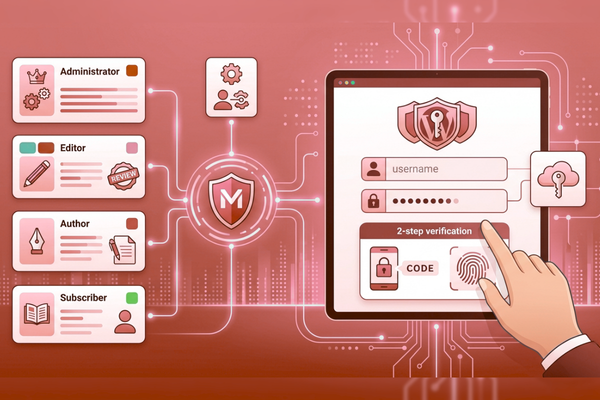
Many hacks begin with a weak password. Or with too many admin users.
Quick login hardening (high impact)
- Use long passwords (12+ characters)
- Do not reuse passwords across tools
- Add 2-step verification (2FA)
- Limit login attempts (stops repeated guessing)
Keep user roles simple and safe
Only a few people should have admin access. Most teams can work as Editor or Author.
| Role | What They Can Do | Recommended For | WordPress Security Note |
| Administrator | Full control (plugins, users, settings) | Site owner/lead dev | Keep admin users minimal |
| Editor | Publish/manage content | Marketing lead | Safer than admin for daily work |
| Author | Publish own posts | Writers | Limits damage if hacked |
| Contributor | Write posts (needs approval) | Guest writers | Good for outside users |
| Subscriber | Basic access | Members | Lowest risk |
Good access control is a core part of WordPress’s Security because it reduces the “blast radius” when something goes wrong.
Secure WordPress Website: hosting, SSL, and safer traffic
Your host is part of your security system. If hosting is weak, fixes take longer.
What to look for in hosting
Choose hosting that offers:
- Strong account isolation
- Server-level firewall options
- Malware scanning support
- Fast support when you need it
- Automatic backups (still verify they work)
Always use SSL (HTTPS)
SSL protects data sent through:
- Login pages
- Contact forms
- Checkout pages
Make sure your site forces HTTPS on every page. This supports a secure WordPress website and improves user trust.
Add a firewall or CDN where possible
A firewall helps block bad traffic early. A CDN can also reduce load and improve speed.
These steps improve Security and protect customer experience at the same time.
WordPress Website Protection: backups that make recovery fast
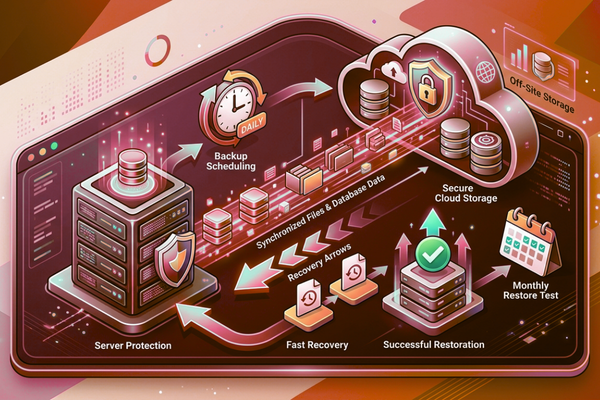
Backups are your safety net. Without them, recovery can take days.
A business-ready backup plan includes
- Daily automatic backups
- Off-site storage (not only on the same server)
- A clear restore process
- A monthly restore test (so you know it works)
Backup needs by site type
| Site Type | Backup Frequency | Storage Location | Restore Test |
| Basic business site | Daily | Off-site cloud storage | Monthly |
| Lead-gen site (forms/CRM) | Daily + before big changes | Off-site + versioned backups | Monthly |
| eCommerce site | Daily + database every 6–12 hours | Off-site + DB snapshots | Monthly (or twice monthly) |
If you want to plan the right level of backup and monitoring, it helps to scope it early using a project estimate for security and site improvements. A clear scope reduces surprises later.
Backups are a must-have in any website security checklist.
WordPress Malware Protection: detect issues early and clean fast
Malware is not always obvious. Some attacks are quiet. They steal traffic or create hidden spam.
Definition: WordPress Malware Protection is the process of scanning, removing, and preventing malicious code on your WordPress site using monitoring, clean restores, and access controls.
Common signs you may have a problem
- Strange redirects to other sites
- New pages you did not create
- Google warnings in search results
- Unknown admin users
- Sudden slow speed for no clear reason
Simple incident plan (keep it calm)
| Step | What To Do | Goal |
| 1 | Put the site in maintenance mode (if needed) | Reduce damage while you act |
| 2 | Change passwords (WP, hosting, email) | Stop ongoing access |
| 3 | Scan the site and review admin users | Confirm what changed |
| 4 | Remove risky plugins/themes or restore clean backup | Fix quickly and safely |
| 5 | Update everything + strengthen logins | Prevent repeat attacks |
| 6 | Monitor and scan again | Confirm the site is clean |
This is practical security in action. It focuses on speed, clarity, and recovery.
WordPress Security Plugins: build a small, effective protection stack
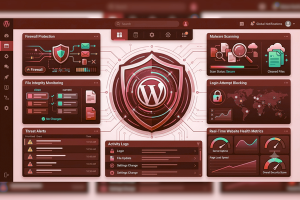
Security plugins can help a lot, but more is not always better. Aim for a clean setup that your team can maintain.
What to Look for in Plugins
- Firewall (blocks common attacks)
- Malware scanning
- Login protection (2FA, login limits)
- File change alerts
- Simple reports and alerts
Feature vs Benefit table (business view)
| Feature | Benefit |
| Firewall rules | Blocks common attacks before they hit your site |
| Login limits + 2FA | Reduces account takeovers |
| Malware scanning | Finds infected files early |
| File integrity checks | Alerts you when key files change |
| Activity logs | Speeds up investigations and fixes |
Quick reminder
Avoid overlapping tools. Too many plugins can slow the site and create conflicts.
A balanced setup supports daily website protection without adding extra maintenance.
Website Security Best Practices
Security fails when it is “random.” A schedule fixes that.
Update and monitoring schedule (simple operating plan)
| Task | Frequency | Time Needed | Outcome |
| Update WordPress core | Weekly | 5–10 min | Fewer known security holes |
| Update plugins/themes | Weekly | 10–20 min | Prevents common exploits |
| Remove unused plugins/themes | Monthly | 10–15 min | Lowers attack surface |
| Review scan reports | Weekly (daily for eCom) | 5–10 min | Early threat detection |
| Backup restore test | Monthly | 20–40 min | Confirms fast recovery |
What “good” looks like
- One person owns the routine
- A second person is the backup owner
- Notes are kept in a shared doc
This is the kind of process used in strong WordPress cybersecurity programs, even for small teams.
For examples of structured delivery and ongoing care, you can review projects like the BundlBox digital build and the EcoTech Windows and Doors website project.
Website Security Tips: Use automation (and AI) to stay consistent
Most teams do not fail at security because they do not care. They fail because they are busy.
Automation helps you:
- Run scans on a schedule
- Send alerts when something changes
- Reduce manual checks
- Speed up response time
Business value section (automation)
Benefits of AI automation include:
- reduced operational costs
- faster workflows
- improved accuracy
- quicker detection of unusual behavior
- less time spent on repeated checks
AI can strengthen website security by helping teams review alerts, summarize logs, and spot patterns faster. For a broader AI context, see OpenAI and Google AI.
Planning table: common AI build costs
| AI Development Type | Estimated Cost |
| AI Chatbot | $10k – $50k |
| AI SaaS | $50k – $200k |
| Enterprise AI | $100k+ |
If you want to connect monitoring, support, and reporting into one system, our AI services for automation and smarter monitoring can help you plan it in a clean, scalable way.
Start Your AI Development Project
Security is easier when your team has clear signals, not noise. If you want fewer surprises and faster response times, consider combining strong website security practices with automated monitoring and reporting.
Start Your AI Development Project with Canadian Software Agency. We can help you design secure workflows that fit your site, your team, and your growth plans—without adding complexity.
Conclusion
Strong WordPress Security is not only about stopping hackers. It is about protecting your ability to operate. When your website stays online, loads fast, and keeps customer data safe, your marketing performs better, and your sales flow stays open. That stability builds trust. Trust drives conversions.
The best protection plan is simple. First, keep WordPress core, themes, and plugins updated. Many common attacks target old versions. Next, remove what you do not use. Each extra plugin or theme is one more thing to maintain. Then lock down logins. Use strong passwords, 2FA, and limited admin access. These steps reduce account takeovers and cut risk quickly.
After that, focus on recovery. Backups are not optional. A tested backup can turn a serious incident into a short restore. Pair backups with scans and alerts so you can catch problems early. Early detection lowers downtime, reduces cleanup costs, and protects your SEO.
Tools also matter, but keep them focused. Choose a small set of trusted security plugins that cover the essentials, including a firewall, malware scanning, login protection, and alerts. Avoid installing too many tools, as they can create conflicts and affect performance. A streamlined setup is easier to manage and helps keep your site running efficiently.
Finally, make it routine. A weekly and monthly checklist is what turns one-time fixes into long-term WordPress website protection. And if your team is stretched, automation can help. Smart monitoring and AI-based support can reduce manual work, improve consistency, and speed up response times.
In short, a strong website security strategy supports business growth. It protects revenue, brand reputation, and customer trust. When you treat security as a simple system—not a panic task—you build a website that supports your business every day.
FAQs
1) What are the Best WordPress Security Tips for a small business site?
Update WordPress and plugins weekly, use 2FA, limit admin users, run malware scans, and set daily backups. Keep the routine simple.
2) What are the most important website security measures to start with?
Start with updates, strong logins, SSL, and backups. These steps reduce the biggest risks fast and support a secure WordPress website.
3) Do I need WordPress Malware Protection if I am not an eCommerce site?
Yes. Even simple sites can be hacked for spam, redirects, or SEO abuse. WordPress malware protection helps you spot issues early.
4) What should be on a WordPress Security Checklist every month?
Remove unused plugins/themes, review admin users, and test a backup restore. These security best practices prevent slow, hidden problems.
5) Are security plugins alone enough to protect your website?
They help a lot, but they are not enough on their own. You still need regular updates, strong access control, reliable backups, and ongoing monitoring for complete website protection.