
WordPress runs more than 43% of all websites on the internet. That number alone tells you how much people trust this platform. Whether you run a small local shop or a growing company, having a professional website helps you reach more customers, build credibility, and grow online.
This beginner’s guide walks you through every major step from choosing a domain name to launching your site. No technical skills required. If you would rather have professionals handle everything, visit here to start your project today.

Why WordPress Is a Smart Choice for Business Owners
Every business needs an online presence. WordPress makes that possible without spending a fortune or hiring a full development team.
Here is why so many businesses choose it:
- It is affordable. You can build a professional site without a large budget
- It is flexible. Use it for blogs, online stores, portfolios, or company websites
- It scales with you. Your site can grow as your business grows
- It works well with Google. The platform is structured in a way that search engines prefer
- You stay in control. Update your own content without touching any code
- Support is everywhere. Millions of users and developers are part of the community
Did You Know? Businesses with a professionally built website get up to 55% more web traffic than those with outdated or poorly structured sites.
What Does Building a Website with WordPress Actually Involve?
Building a website means setting up and launching a site on the WordPress platform.
What Is Website Development with WordPress?
It is the process of creating a professional website using WordPress. This covers setup, design, functionality, content, and ongoing maintenance. Businesses of all sizes use it to go online quickly and cost-effectively.
Who Is WordPress Best Suited For?
WordPress works well for almost every type of business:
- Startups that need a fast, affordable launch
- Small businesses that want to look professional online
- Online stores selling products or services
- Freelancers and agencies showcasing their work
- Larger companies that need a powerful, customisable platform
Real Business Benefits of a Well-Built Website
A good website does more than put your name online. It actively supports your business goals.
| Benefit | What It Means for You |
|---|---|
| Higher search visibility | More people find you through Google |
| Professional appearance | Customers trust you before they even contact you |
| More leads and sales | A clear site guides visitors toward taking action |
| Lower ongoing costs | You can manage most updates yourself |
| Faster launch | A complete site can go live within days |
| Global reach | Your site works around the clock, every day |
| Easy content updates | No coding needed to change pages or add posts |
| Tool integrations | Connect your CRM, email list, or payment system |
| Room to grow | Add new features as your business expands |
We have seen these results firsthand. Read how a parking management business transformed its entire digital operation through a professionally built website.
How to Build a Website Using WordPress: Step-by-Step
Follow these steps in order, and you will have a working website by the end.
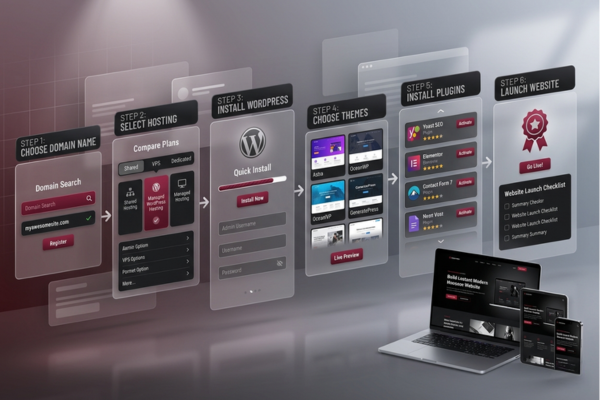
Step 1 — Choose Your Domain Name
Your domain is your website address, for example, yourbusiness.com. A good one is:
- Short and easy to spell
- Connected to your business name or what you do
- Ending in .com where possible
- Free of numbers and hyphens
Search for available domains on platforms like Namecheap or GoDaddy.
Step 2 — Pick a Hosting Provider
Hosting keeps your website running on the internet. Think of it as renting server space. Here is a breakdown of the main options:
| Hosting Type | Best For | Estimated Monthly Cost |
|---|---|---|
| Shared Hosting | Beginners and small sites | $3 – $10 |
| VPS Hosting | Growing businesses | $20 – $80 |
| Managed WordPress Hosting | High-performance sites | $25 – $150 |
| Dedicated Hosting | Large enterprise sites | $100 – $500 |
| Cloud Hosting | Sites with unpredictable traffic | $10 – $200 |
Good beginner options include Bluehost, SiteGround, and WP Engine.
Step 3 — Install WordPress
Most hosts make this simple with a one-click installer. Here is the process:
- Log in to your hosting account
- Find the WordPress installer, usually inside the cPanel dashboard
- Enter your domain name
- Create your admin username and password
- Click install and wait about one minute
WordPress is now live on your site.
Step 4 — Choose a Theme
Your theme controls how your website looks. There are thousands of free and paid options available.
Look for themes that offer:
- Mobile-friendly layouts
- Fast loading speeds
- A clean, professional appearance
- Easy customisation for colours, fonts, and structure
- Good SEO foundations built in
Browse options on ThemeForest or inside the free WordPress theme library.
Step 5 — Install the Right Plugins
Plugins add features to your site without any coding. Start with these essentials:
| Plugin | What It Does |
|---|---|
| Yoast SEO | Helps your pages rank on Google |
| WooCommerce | Turns your site into an online store |
| Elementor | Drag-and-drop page building |
| WPForms | Adds a simple contact form |
| Wordfence | Protects against hackers |
| W3 Total Cache | Speeds up page loading |
| UpdraftPlus | Runs automatic backups |
Install only what you need. Too many plugins slow your site down.
Step 6 — Customise Your Design
Now make the site look and feel like your business:
- Upload your logo
- Set your brand colours and fonts
- Design your homepage layout
- Create a navigation menu
- Set up your header and footer
Most themes let you do all of this inside the WordPress Customiser with no code required.
Step 7 — Build Your Core Pages
Every business website needs these pages at a minimum:
- Home — Your first impression. Make it clear and welcoming
- About — Tell people who you are and what you stand for
- Services or Products — Show exactly what you offer
- Contact — Make it easy for people to get in touch
- Blog — Brings in free search traffic over time
Step 8 — Set Up SEO and Analytics
Get this in place before you launch so you can start tracking results from day one:
- Install Yoast SEO or Rank Math
- Add your main keywords to page titles and descriptions
- Submit your sitemap to Google Search Console
- Connect Google Analytics to track visitor behaviour
- Add descriptive alt text to all images
Step 9 — Test Everything Before You Go Live
Do not skip this step. Check the following:
- Every link works correctly
- The site looks good on phones, tablets, and desktops
- Page speed passes Google PageSpeed Insights
- All text is free of spelling errors
- Your contact form sends messages successfully
Once everything checks out, remove the coming soon page and launch.
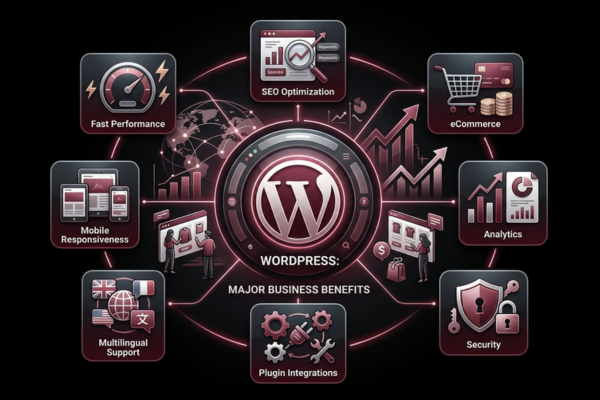
| Feature | Business Benefit |
|---|---|
| SEO-friendly URL structure | Pages rank more easily in search results |
| Mobile responsive design | Visitors on phones have a smooth experience |
| Plugin support | Add features without writing any code |
| Custom integrations | Connect payment tools, CRMs, and email platforms |
| Scalable hosting | Handle more visitors as your business grows |
| Multilingual support | Reach customers in different languages |
| eCommerce functionality | Sell products and services directly from your site |
| Security features | Protect your data and your customers |
| Analytics dashboard | Make decisions based on real visitor data |
| Speed optimisation tools | Keep visitors from leaving due to slow load times |
See how a windows and doors company used many of these features to build a stronger online platform and drive real business growth.
Common Mistakes Beginners Should Avoid
Knowing what not to do is just as valuable as knowing what to do.
Watch out for these:
- Choosing a cheap or slow hosting provider to save a few dollars
- Installing too many plugins, which slows the site down
- Building a site that does not work properly on mobile devices
- Forgetting to set up regular backups
- Ignoring SEO during the initial setup
- Using blurry or low-resolution images
- Skipping the SSL certificate setup
- Launching without testing on multiple devices
Avoiding these mistakes saves you significant time and money down the road.
Securing Your WordPress Site
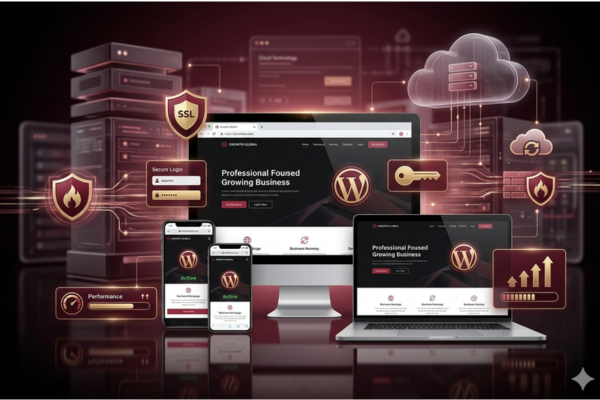
Keeping your site safe is not optional. Strong passwords, regular updates, a reliable security plugin, and SSL encryption are the foundation. These basic steps protect your business, your data, and your customers’ trust.
Here are ten things you should do before and after launching:
- Use a strong password — Combine uppercase, lowercase, numbers, and symbols
- Keep WordPress updated — Always run the latest version
- Update plugins and themes regularly — Outdated ones are a common entry point for attacks
- Install a security plugin — Wordfence and Sucuri are both reliable choices
- Enable SSL — Protects data exchanged between your site and visitors
- Set up automatic backups — UpdraftPlus can save your site daily
- Limit login attempts — Prevents repeated password guessing
- Use two-factor authentication — Adds a second verification step at login
- Change your admin username — Never leave it as the default “admin”
- Choose a secure host — Good security starts at the infrastructure level
How Much Does a Website Built on WordPress Cost?
Pricing depends on the complexity of the project, the number of pages, and whether you hire a professional team or do it yourself.
| Project Type | Estimated Cost |
|---|---|
| Basic Blog or Personal Site | $500 – $2,000 |
| Small Business Website | $2,000 – $8,000 |
| eCommerce Store | $5,000 – $25,000 |
| Custom Business Website | $8,000 – $30,000 |
| Enterprise Platform | $30,000 – $100,000+ |
| Monthly Maintenance | $100 – $500/month |
Working with an experienced agency means you get more value from your investment and avoid costly mistakes. See how the right approach to web development delivered measurable results in this eCommerce case study.
How WordPress Compares to Other Platforms
If you are weighing your options, here is a straightforward comparison:
- WordPress vs. Wix — WordPress offers better SEO, more flexibility, and greater room to grow
- WordPress vs. Squarespace — WordPress gives you more control and a wider range of features
- WordPress vs. Shopify — WordPress with WooCommerce is often more cost-effective for online stores
- WordPress vs. Custom Code — WordPress is faster to build and easier to manage long-term
For most businesses, WordPress delivers the right balance of power and practicality.
Start Your Website Project with a Canadian Agency
Ready to put your business online with a site that actually works? At Canadian Agency, we build websites that are fast, professional, and designed to support your growth.
Here is what you get when you work with us:
- A custom design that reflects your brand
- A site that looks great on all devices
- SEO configured from the start
- Plugin setup and eCommerce integration if needed
- Ongoing support after launch
- Clear pricing and fast delivery
Whether you need a straightforward business site or a large custom platform, our team handles everything from domain selection to launch day.
Contact us here to start your project and let us build something that works for your business every day.
Conclusion
You now have a clear, step-by-step picture of how to build a website using WordPress from the ground up.
WordPress remains the most practical and flexible platform for businesses of all sizes. It is affordable, scalable, and genuinely effective for growing an online presence. The key is following the right process, avoiding common mistakes, and investing in quality from the beginning.
If you are ready to get started, contact the Canadian Agency team here. We will build a site that works hard for your business every single day.